Learn how to send emails securely using Gmail SMTP with App Passwords. This guide covers enabling 2FA, generating app passwords, and SMTP setup.
✅ How to Send Emails Using Gmail SMTP with App Password
If you're trying to send emails through your web application using Gmail SMTP, you're on the right path. Gmail provides a secure and reliable SMTP service, but due to Google’s strict security standards, you'll need to use App Passwords—especially when using a Gmail account created via Google Workspace (formerly G Suite) with 2-Step Verification enabled.
In this blog, we’ll walk you through the entire setup process for using Gmail SMTP to send emails securely.
🔐 Step 1: Enable 2-Step Verification
Before you can generate an App Password, you need to enable 2-Step Verification on your Google account.
How to Enable:
-
Log in to your Gmail account.
-
Go to Manage your Google Account.
-
Navigate to Security.
-
Under the Signing in to Google section, find 2-Step Verification and turn it ON.
-
Follow the prompts to complete setup using your mobile device.
🔑 Step 2: Generate an App Password
Now that 2-Step Verification is enabled, you can generate an App Password specifically for your application.
Steps:
-
While logged into your Gmail, go to Google Account.
-
Click on Security.
-
In the search bar at the top, type App passwords and click the result.
-
You’ll be prompted to log in again.
-
Under Select App, choose Mail.
-
Under Select Device, choose Other and name it (e.g., "My Web App").
-
Click Generate.
📌 Note the 16-character password displayed. This is your App Password and will be used instead of your normal Gmail password in the SMTP configuration.
📤 SMTP Configuration Details
Use the following SMTP settings in your application or email client:
-
SMTP Host:
smtp.gmail.com -
Port:
-
587(TLS) -
465(SSL)
-
-
Encryption: TLS or SSL (as per your port)
-
Authentication: Yes
-
Username: Your full Gmail address (e.g.,
yourname@gmail.com) -
Password: The App Password you generated
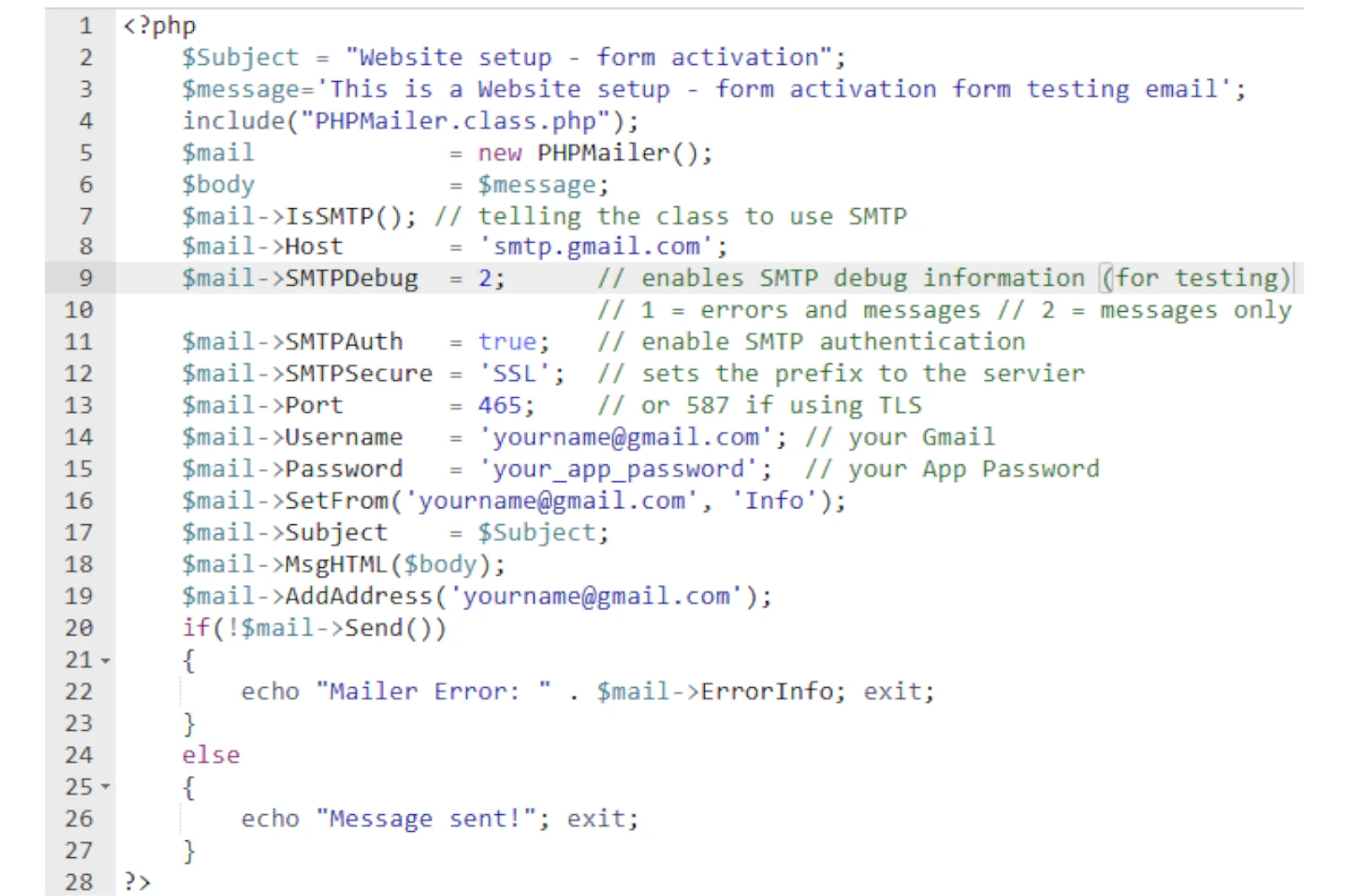
💻 Sample PHP Code Using PHPMailer

⚠️ Common Issues
-
App Password Not Working?
-
Double-check that 2-Step Verification is enabled.
-
Ensure you copied the App Password correctly (no spaces).
-
-
SMTP Connect() Failed?
-
Check firewall and internet restrictions.
-
Ensure port
587or465is open.
-
✅ Conclusion
Using Gmail’s SMTP service with App Passwords adds an essential layer of security and reliability to your email-sending functionality. Whether you're building a contact form, a notification system, or a transactional email service, this method ensures your emails are sent securely and comply with Google’s standards.