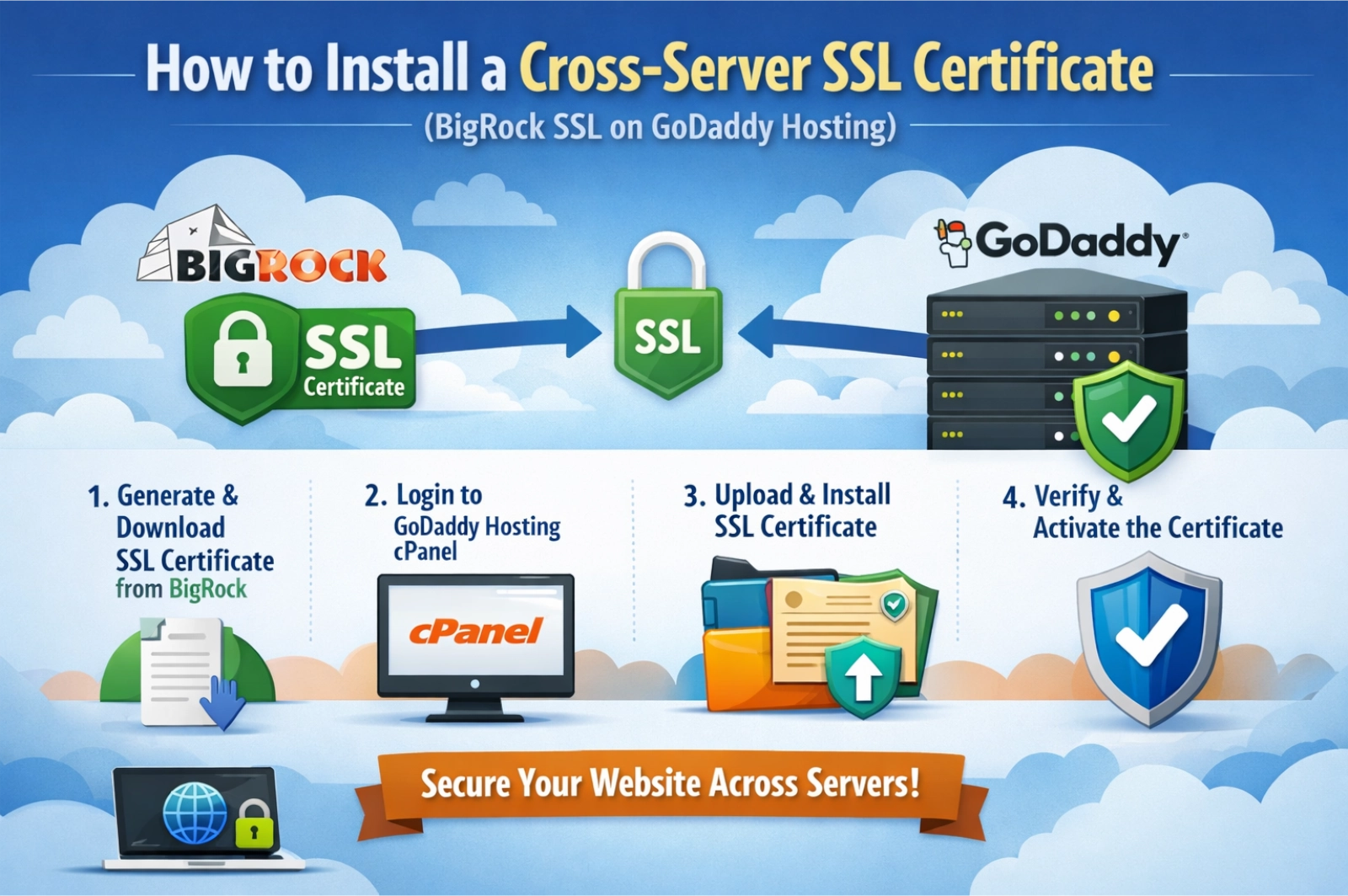
Learn how to install a cross-server SSL certificate when your hosting is on GoDaddy and SSL is purchased from BigRock. Step-by-step guide covering CSR generation, DNS verification, installation, and HTTPS setup.
Installing an SSL certificate when your hosting provider and SSL provider are different is very common. For example:
-
🌐 Website Hosting: GoDaddy
-
🔒 SSL Provider: BigRock (powered by Sectigo)
This setup is called a cross-server SSL installation.
If your website is hosted on GoDaddy but your SSL certificate is purchased from BigRock, this detailed guide will walk you through the complete, professional process — from CSR generation to final HTTPS activation.
What is a Cross-Server SSL Installation?
A cross-server SSL setup means:
-
Your domain/hosting server is with one company
-
Your SSL certificate is purchased from another company
The process involves:
-
Generating a CSR on the hosting server
-
Activating the SSL with the provider
-
Verifying domain ownership
-
Installing the issued certificate back on the hosting server
Once completed, your website becomes secure and accessible via HTTPS.
Step 1: Generate CSR on GoDaddy (Hosting Server)
The CSR (Certificate Signing Request) must be generated on the server where the website is hosted.
How to Generate CSR in GoDaddy cPanel
-
Login to GoDaddy
-
Go to My Products
-
Click Web Hosting → Manage
-
Open cPanel
-
Navigate to SSL/TLS
-
Click Generate, view, or delete CSR
Fill in:
-
Domain name (e.g., yourdomain.com)
-
Country
-
State
-
City
-
Organization name
Click Generate.
You will see a block of code:
Copy the entire CSR — you’ll need it in the next step.
Step 2: Activate SSL Certificate in BigRock
Now activate the certificate using the CSR.
Steps:
-
Login to BigRock
-
Go to My Products
-
Click SSL Certificates
-
Click Manage
-
Select Activate
-
Paste the CSR generated from GoDaddy
Proceed to domain validation.
Step 3: Complete Domain Verification (DNS Method – Recommended)
BigRock will provide a CNAME record for verification.
Example:
-
Type: CNAME
-
Host:
_XXXXXXXXXXXX -
Points to:
XXXXXXXX.sectigo.com
Add CNAME Record in GoDaddy DNS
⚠ Important: Add the DNS record in GoDaddy (where your domain DNS is managed), NOT in BigRock.
Steps:
-
Login to GoDaddy
-
Go to Domains
-
Click Manage DNS
-
Click Add Record
Fill in:
-
Type: CNAME
-
Name: (copy exactly from BigRock)
-
Value: (copy exactly from BigRock)
-
TTL: Default
Click Save.
DNS Propagation Time
-
Usually: 10–30 minutes
-
Maximum: 4–6 hours
After adding the record:
Return to BigRock and click Done.
Step 4: Check SSL Certificate Status
In BigRock:
Go to → My Products → SSL Certificates
You’ll see one of these statuses:
| Status | Meaning |
|---|---|
| Pending | Waiting for DNS propagation |
| Issued / Active | Certificate ready |
| Failed | Verification error |
Once status shows Issued / Active, download:
Certificate (CRT file)
CA Bundle (Intermediate certificate)
Step 5: Install SSL Certificate in GoDaddy
Now install the issued certificate.
Steps:
Login to GoDaddy
Open cPanel
Go to SSL/TLS
Click Manage SSL Sites
Under Install an SSL Website, paste:
Certificate (CRT) → From BigRock
Private Key (Auto-filled from CSR)
CA Bundle → From BigRock
Select your domain.
Click Install Certificate.
SSL installation complete.
Step 6: Force HTTPS Redirection
To ensure all visitors use HTTPS:
Edit .htaccess file inside public_html and add:
Save the file.
Step 7: Verify SSL Installation
Visit:
You should see a 🔒 secure padlock.
You may also test using SSL checking tools for full chain verification.
Common SSL Installation Issues & Solutions
1. Private Key Mismatch
Cause: CSR generated on a different server
Fix: Regenerate CSR in GoDaddy
2. SSL Still Pending
Cause: DNS not propagated
Fix: Wait or verify CNAME record
3. No Padlock After Installation
Cause: Mixed content (HTTP images/scripts)
Fix: Update URLs to HTTPS
4. HTTPS Works but HTTP Also Loads
Cause: Missing redirect rule
Fix: Add .htaccess redirect
Why Installing SSL Correctly Matters
A properly installed SSL certificate:
Protects user data
Improves SEO rankings
Builds customer trust
Enables secure transactions
Prevents browser security warnings
Search engines prioritize secure websites. Without HTTPS, your site may show “Not Secure” in browsers.
Cross-Server SSL Benefits
Using separate providers for hosting and SSL allows:
Competitive pricing
Better certificate options
Easier hosting migration
Independent certificate control
Many businesses buy SSL from one provider and host elsewhere without any issues.
Final SSL Installation Checklist
✔ CSR generated on hosting server
✔ SSL activated in BigRock
✔ CNAME record added in GoDaddy DNS
✔ Certificate status shows Issued
✔ SSL installed in cPanel
✔ HTTPS redirect configured
✔ Secure padlock visible
Conclusion
Installing a cross-server SSL certificate may seem technical, but the process follows a clear structure:
Generate CSR → Verify Domain → Install Certificate → Force HTTPS
Once configured properly, your website becomes secure, trusted, and SEO-friendly.
If you need help formatting this for WordPress, generating meta tags, or creating a LinkedIn promotional post, I can prepare that for you as well.